About the app
The Logistics Hub app for drivers and employees on Android.
Built for daily field work
Drivers see daily orders, target progress and wallet; employees record attendance, submit requests and view documents, all linked to the company dashboard.
- Attendance with face and location checks
- Requests, tasks, leave and letters
- Wallet, settlements and vehicle for drivers
- Documents with expiry reminders
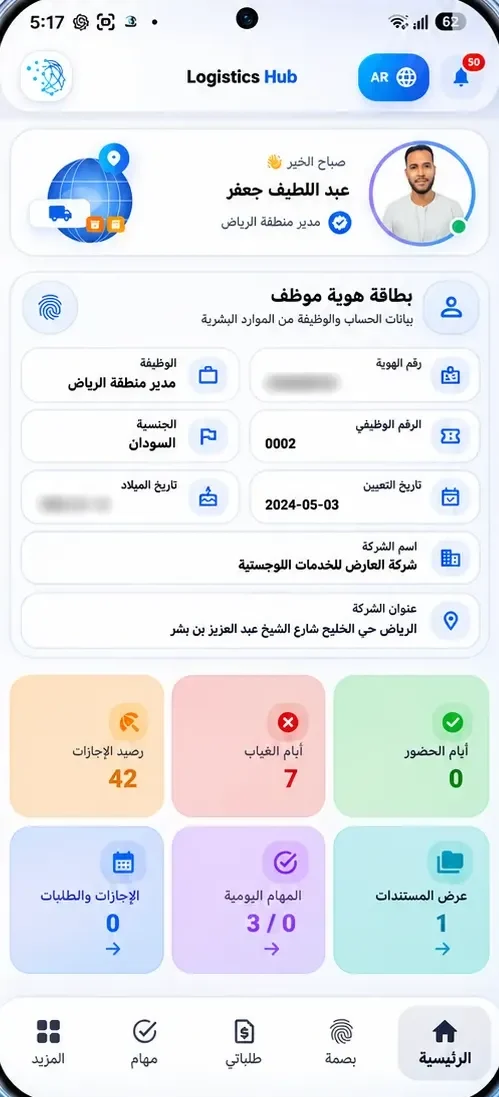
Eight screens, each explained precisely
Based on what is actually built in the app and its server: what each screen shows, what it offers and how it works behind the scenes.
 Screen01Employees & driversGetting started
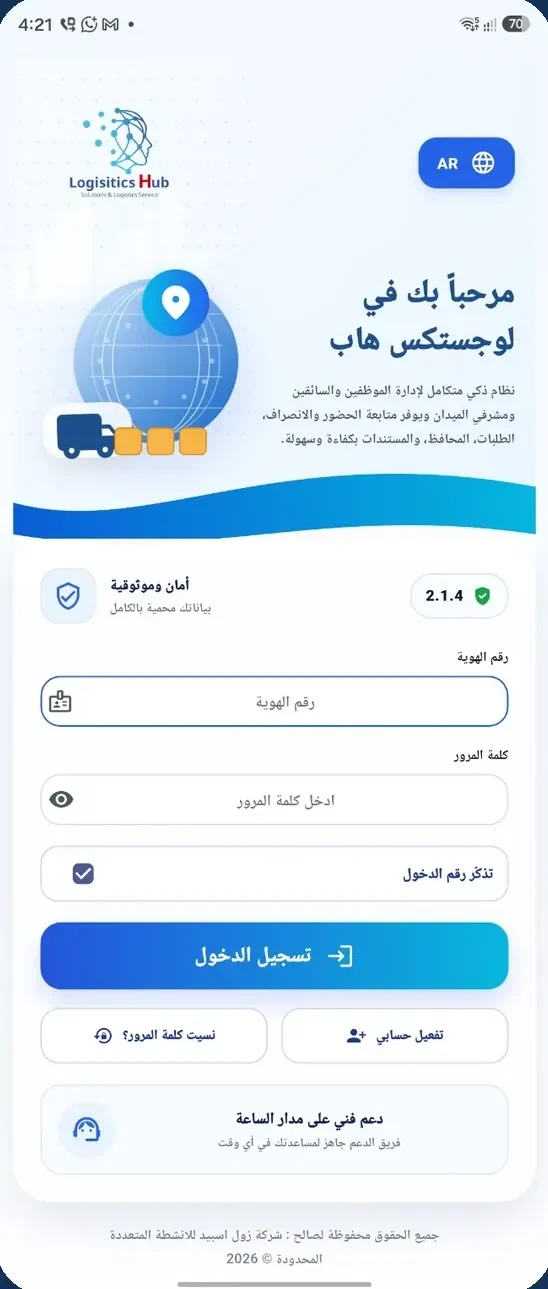
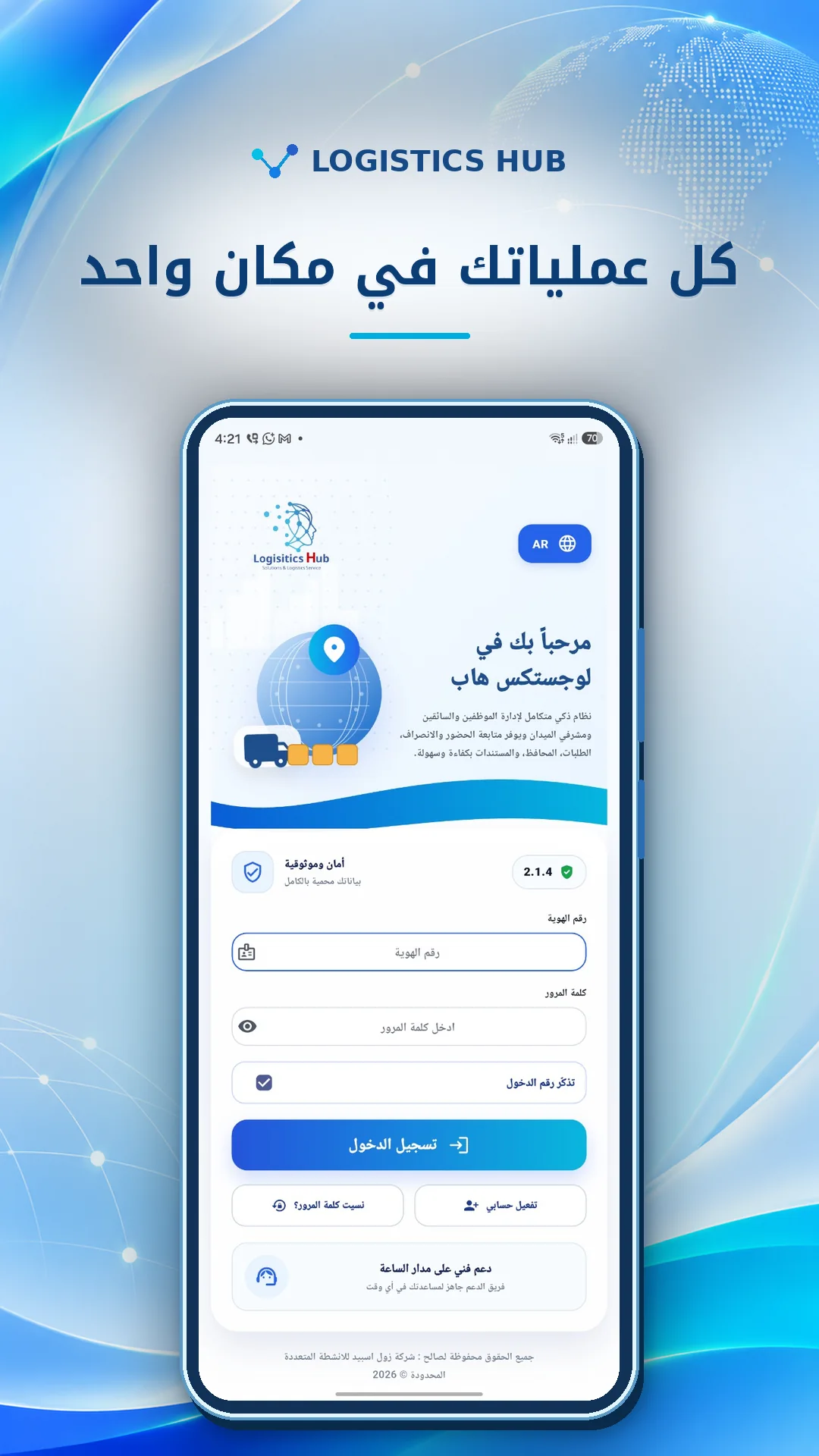
Sign-in & account activation
One gate for employees and drivers: users sign in with their national ID or iqama number and password, and the system recognises the account type and opens the employee or driver interface. Accounts not linked to an employee or driver record at the company cannot sign in.
What you get
- First-time activation with the ID number; activation details arrive by email
- Password recovery with a code sent by email, then a new password
- “Remember login number” pre-fills the ID next time
- Three interface languages: Arabic, English and Urdu
- The app version shown at the bottom is read from the installed build
How it works behind the scenes
- 1The session token is kept in the system secure store (iOS Keychain, Android Keystore), not in ordinary app files
- 2The server renews the session before it expires, so users are not asked to sign in every time
- 3Losing the connection never signs the user out; the app shows the last saved data until it reconnects
- 4On launch the app checks for a mandatory update or maintenance mode set by the server
Changing the password from Settings automatically ends sessions open on other devices.
 Screen02EmployeesEmployee interface
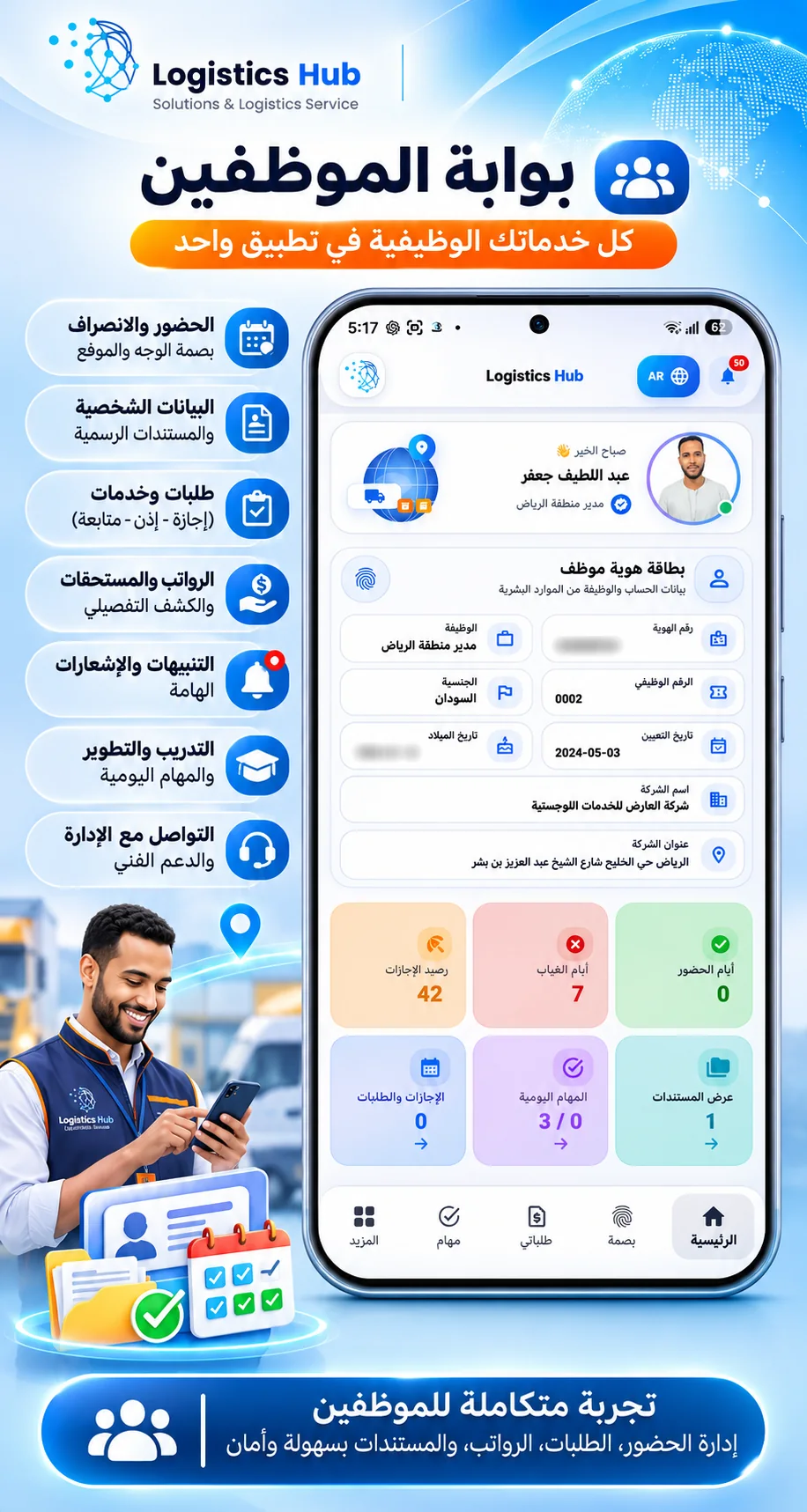
Home: employee card & key numbers
The first thing an employee sees: a time-of-day greeting, a digital ID card read straight from their HR record, and a panel of numbers that sums up their status at a glance.
What you get
- ID card: ID number, job title, employee number, nationality, hire date and company details
- Attendance and absence days this month
- Remaining leave balance
- Leave and letter requests this month
- Active daily tasks out of all assigned tasks
- Number of documents on file
How it works behind the scenes
- 1Data comes from the employee and company records in the same system; nothing is typed in by hand
- 2Any change made by HR shows in the app on the next refresh
- 3Fixed bottom bar: Home, Attendance, My requests, Tasks and More (documents and settings)
- 4The last copy of the data is kept on the device and shown on weak connections with a “not up to date” banner
The ID number and birth date are blurred in this image to protect the account holder's privacy.
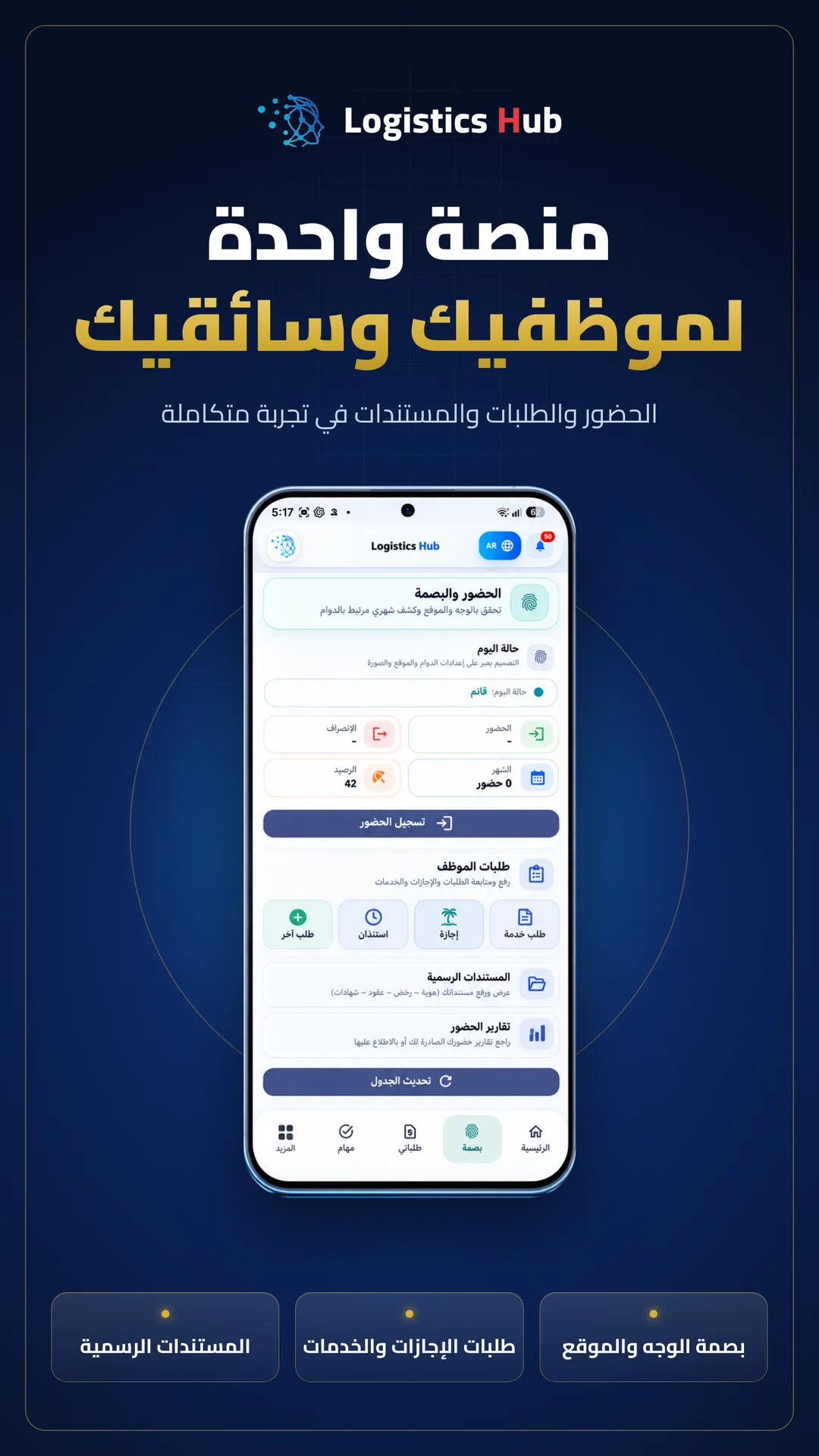 Screen03EmployeesSelf-service
Employee platform: requests, tasks & reports
This screen gathers the self-service tools an employee needs every day, so HR paperwork is handled from the phone without forms or office visits.
What you get
- Requests: annual, sick or personal leave, absence, and letter/other, with dates and a reason
- “My requests” history with each status: pending, approved or rejected
- Daily tasks assigned by management, with status updates and completion
- Attendance reports issued by management for the employee to acknowledge or dispute
How it works behind the scenes
- 1The request is saved as pending and company admins are notified immediately
- 2The employee gets a confirmation in the app and by email
- 3The request appears in the HR dashboard for approval or rejection
- 4When a decision is made the employee receives a push notification
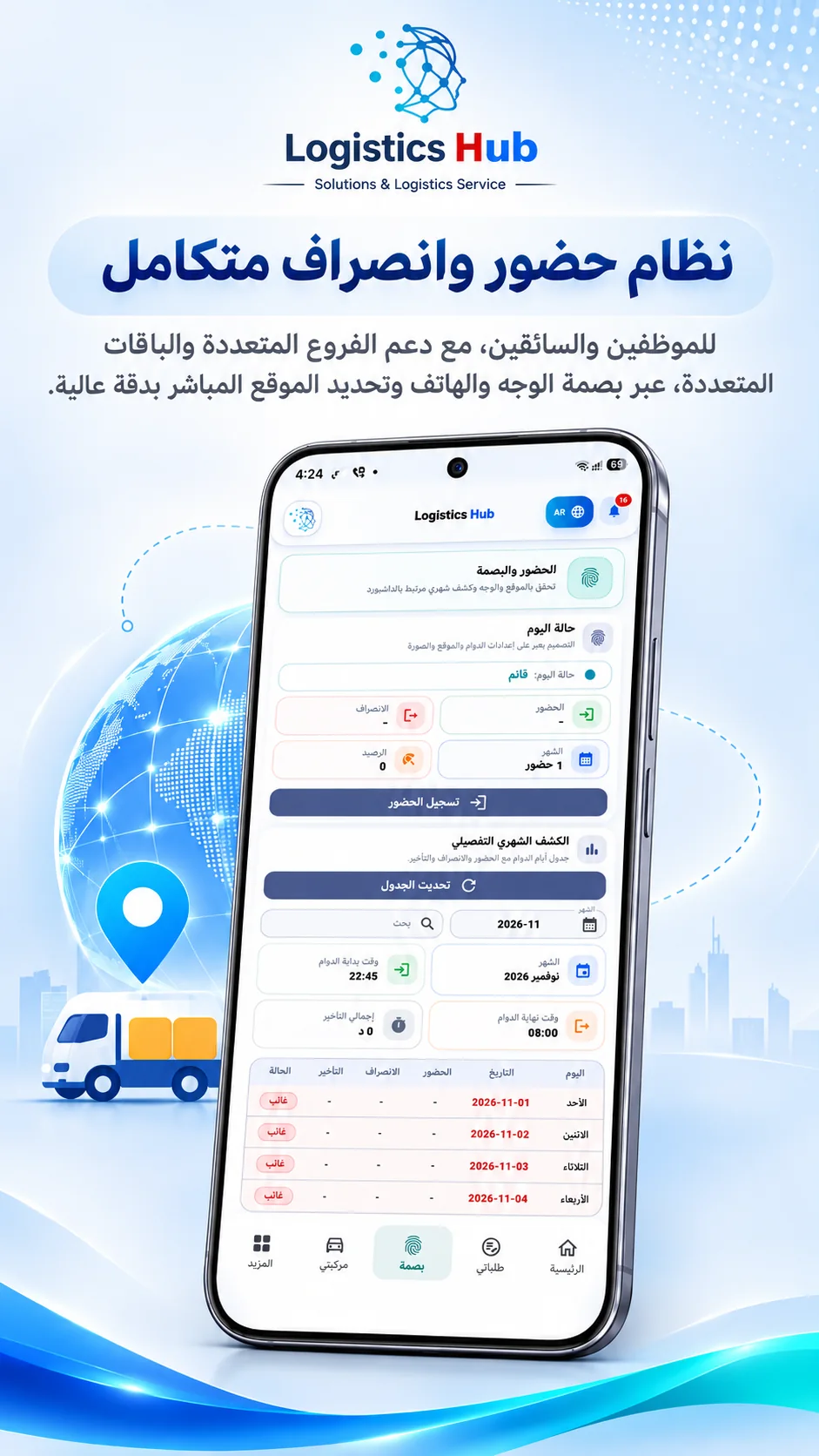 Screen04Employees & driversAttendance
Smart attendance: face + location
Checking in and out is not a single tap: each punch passes several checks that make sure the right person is in the right place at the right time.
What you get
- A random liveness challenge issued by the server: blink, turn your head or smile, so a still photo cannot be used
- Face matching against the official photo in the HR record
- A check that the user is inside the branch radius
- Mock locations and weak or stale GPS readings are rejected
- Today's status: check-in, check-out and minutes late
- Monthly statement of working days with total lateness
How it works behind the scenes
- 1The face check runs on the device itself with Google ML Kit
- 2If the face does not match, no attendance is recorded; the user can retry or send it to a manager, who sees both photos side by side
- 3The server stamps the punch with its own clock, not the phone's, and applies shift rules: check-in window, grace period and overnight shifts
- 4Offline punches wait in a queue with a unique ID and are sent automatically when the connection returns, without duplicates
- 5Radius, GPS accuracy and early check-out handling are rules each company sets
The face photo is sent to the server only when the company policy requires a proof photo, or when the employee asks for a manual review.
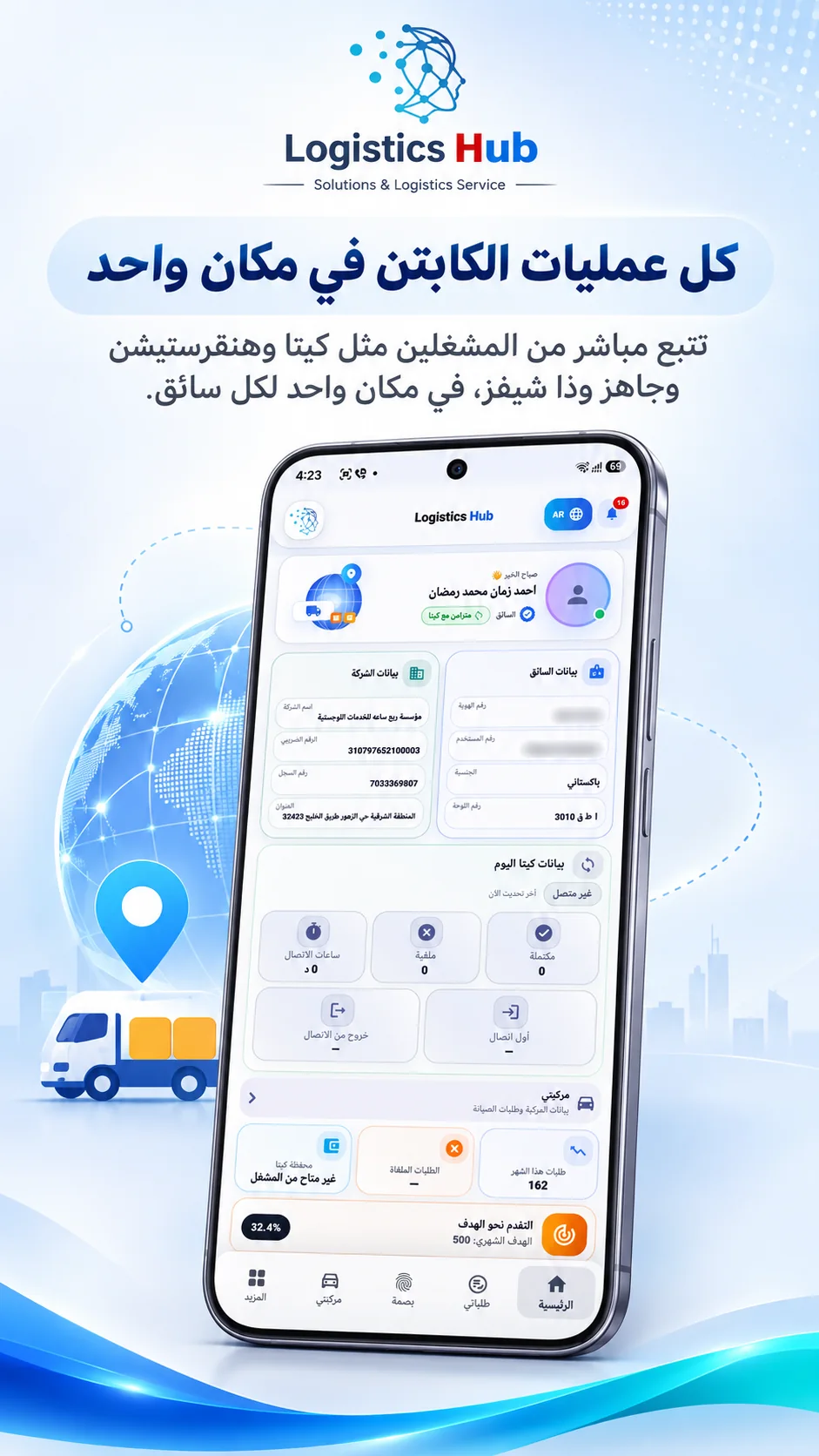 Screen05DriversDriver interface
Driver home: today's performance & monthly target
The driver dashboard shows the driver's and company's details, then today's performance on the delivery platform and progress toward the monthly target.
What you get
- Driver details: ID, user number, nationality and plate
- Company details: name, VAT number, commercial registration and address
- Today: completed and cancelled orders, connected hours and first connection time
- Monthly orders and progress toward the monthly target
- Target and bonus come from the package assigned to the driver
How it works behind the scenes
- 1Sync with Keeta and HungerStation runs through a browser extension paired with a per-account sync key
- 2The “synced” badge shows only if the last sync succeeded within 10 minutes; otherwise the real state is shown: delayed, failed or needs sign-in
- 3Without a link, the driver enters daily performance manually with a screenshot as proof
- 4Bottom bar: Home, My orders, Attendance, My vehicle and More
The ID and user numbers are blurred in this image to protect the driver's privacy.
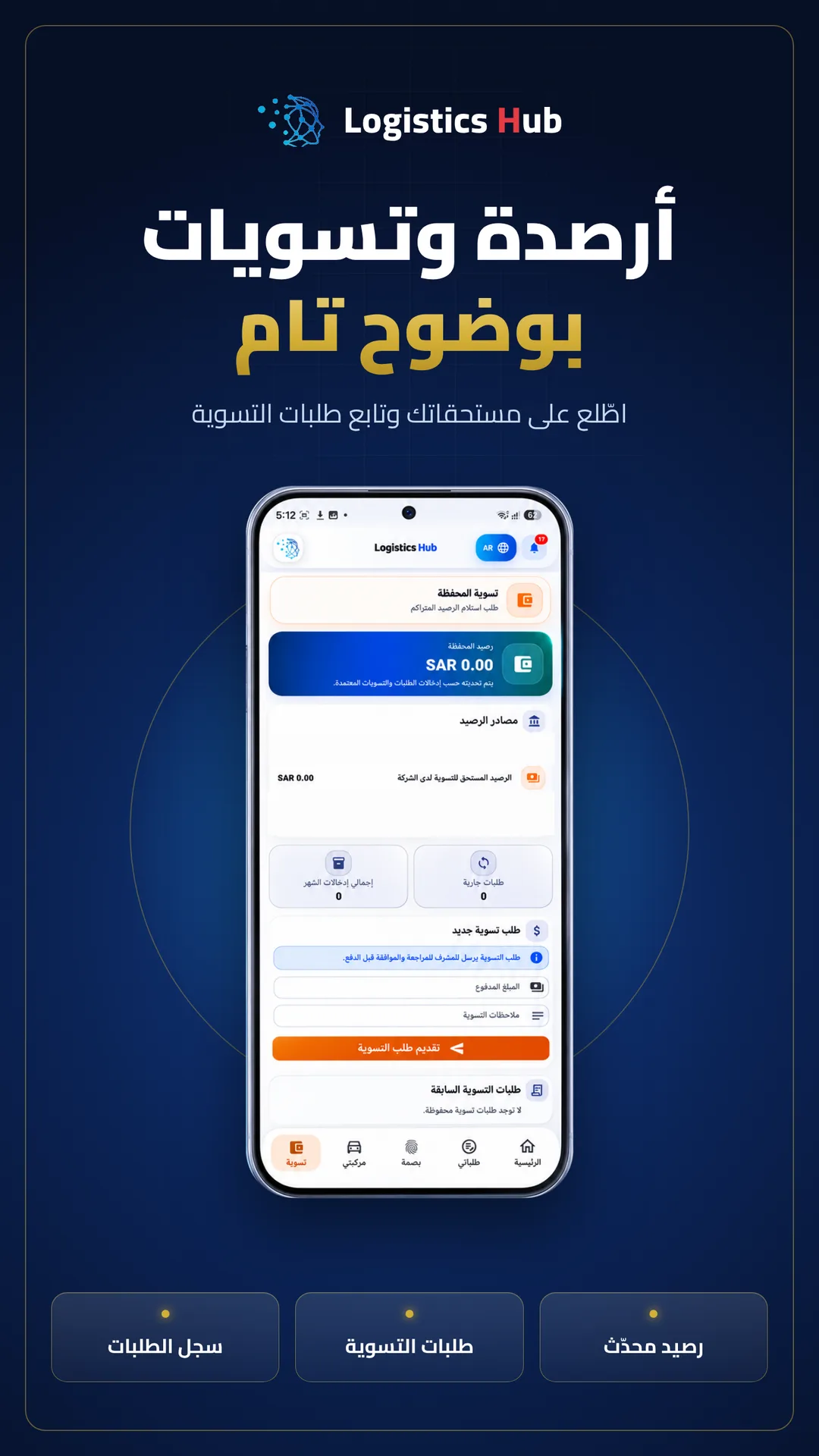 Screen06DriversFinance
Wallet & balance settlement
Drivers follow the balance they hold for the company and raise a settlement request from the app, with a clear history of past requests.
What you get
- The wallet balance is the sum of daily wallet entries minus approved settlements
- Balance sources: the amount due at the company and the platform wallet status
- Ongoing requests and the month's total entries
- New settlement request: amount paid and notes
- History of previous settlement requests and their status
How it works behind the scenes
- 1The amount must be above zero and no more than the available balance
- 2The request is saved as pending and sent to the supervisor for review and approval before payment, and admins are notified
- 3A new request cannot be opened while another one is pending
- 4Matching against the platform wallet is not currently offered by the operator; the app says so plainly and relies only on the balance recorded at the company
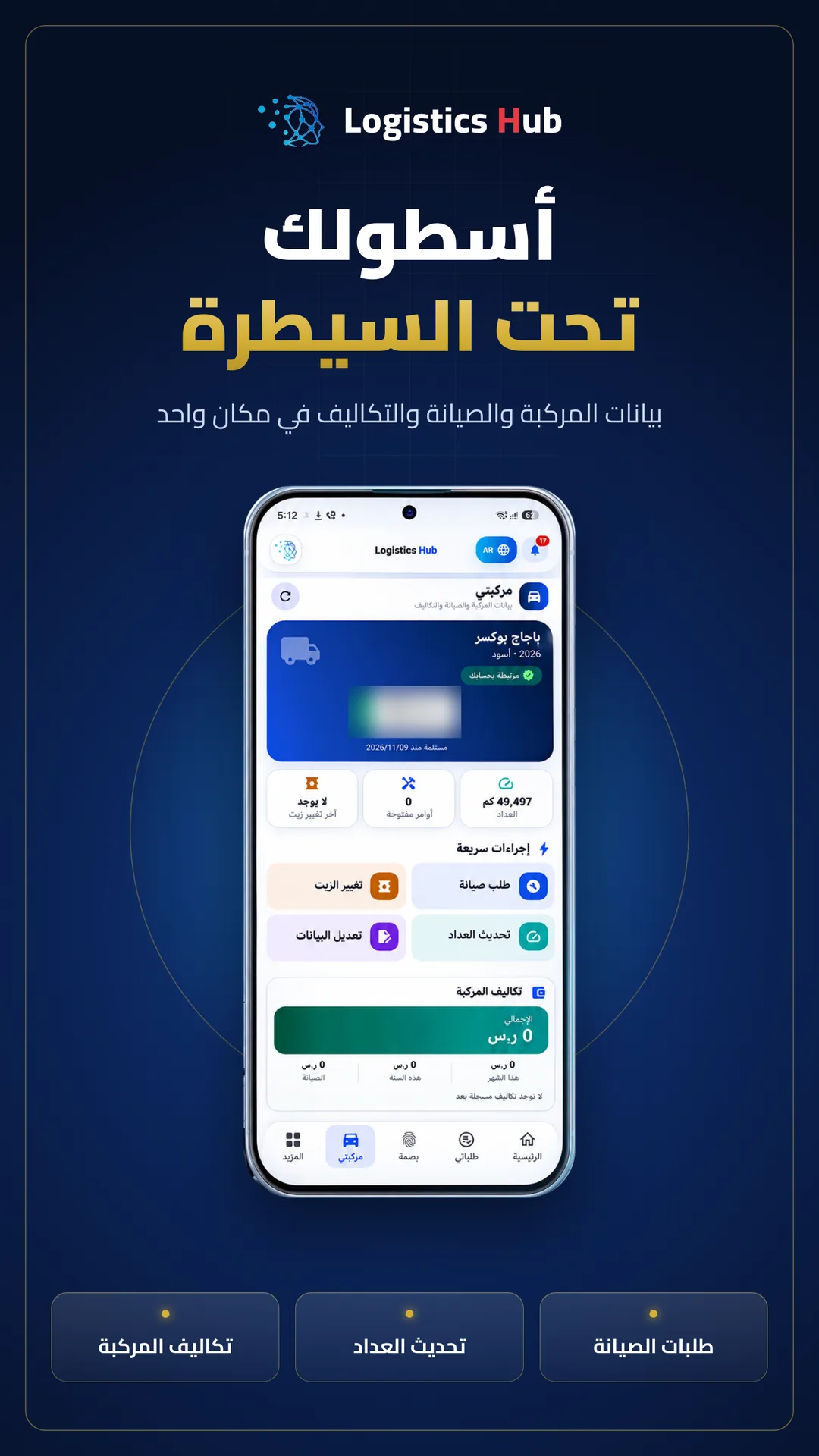 Screen07DriversFleet
My vehicle: details, maintenance & costs
Everything about the driver's vehicle on one screen: its details, odometer, maintenance orders, costs and vehicle documents with their expiry dates.
What you get
- Vehicle card: make, model, year, colour, plate and hand-over date
- Odometer, open maintenance orders and last oil change
- Quick actions: maintenance request, oil change, odometer update, edit details
- Costs: total, this month, this year and maintenance
- Vehicle documents: registration, insurance and operation card with days left to expiry
How it works behind the scenes
- 1The oil-change request comes pre-filled and carries the odometer reading
- 2The app does not accept an odometer reading below the current one
- 3Odometer updates and detail edits go through admin approval
- 4If no vehicle is assigned yet, the driver can submit a vehicle registration request
The vehicle plate number is blurred in this image.
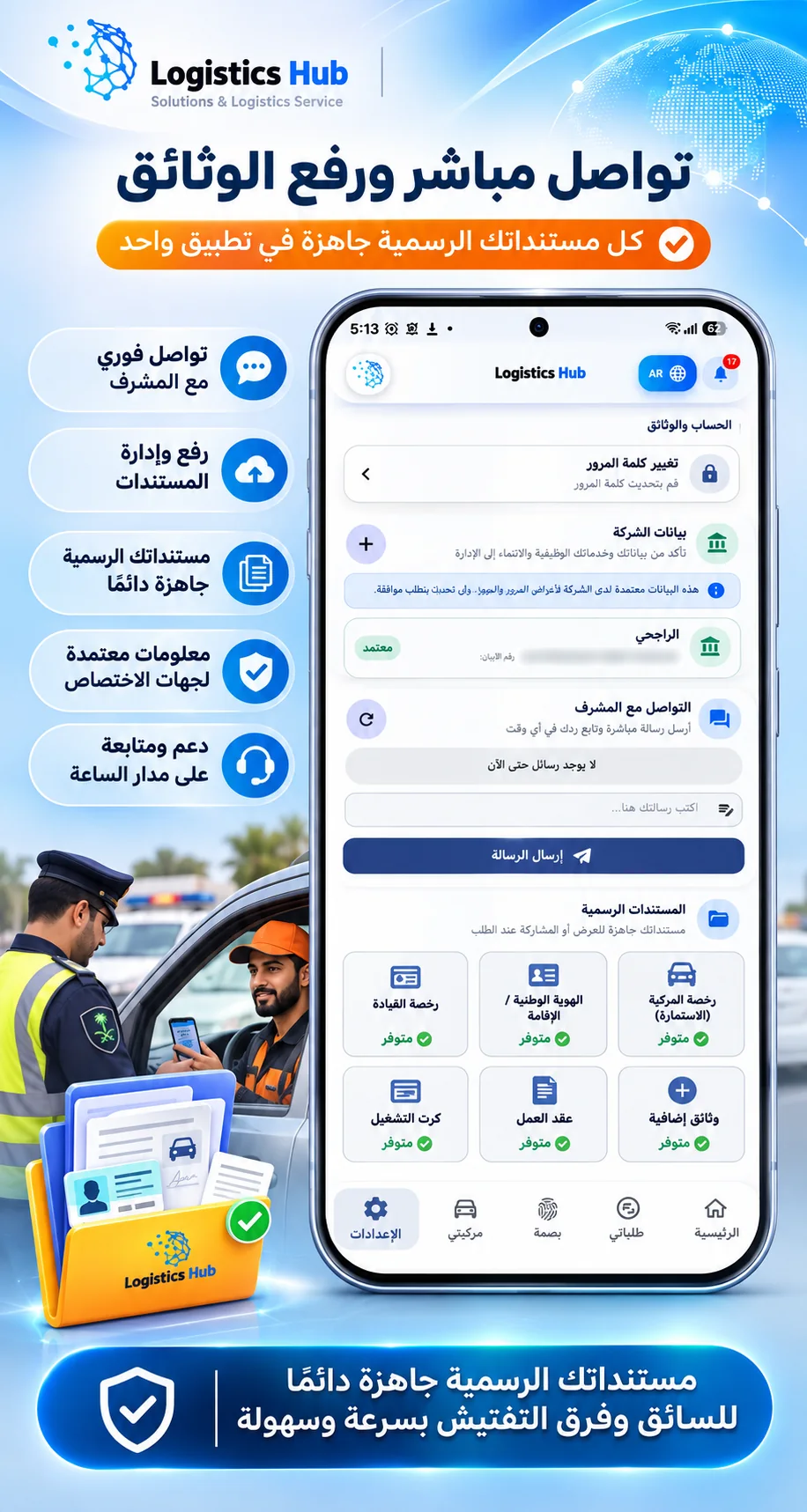 Screen08Employees & driversAccount & documents
Direct contact & official documents
One screen for account security, bank details, contact with the supervisor and official documents with expiry reminders.
What you get
- Change password inside the app
- Bank accounts and digital wallets with their approval status
- Direct chat with the supervisor (drivers)
- Documents: ID or iqama, driving licence, vehicle registration, Ajeer permit, operation card, work contract and extra documents
- Expiry reminders for licence, insurance, registration and passport 30 days ahead
- In-app PDF preview
How it works behind the scenes
- 1A document is updated by uploading an image of up to 6 MB, which waits for admin approval
- 2An iqama update must include its expiry date
- 3Bank accounts are reviewed by an admin and must be in the holder's own name; an approved account cannot be deleted from the app
- 4Changing the password ends sessions on other devices and gives this device a new session
The IBAN is blurred in this image to protect the account holder's data.
Why the app asks for permissions
Location
To record attendance inside the work-site radius. Drivers on Android are also asked for background location, with a persistent notification while tracking runs.
Camera
For the face liveness check at attendance, and to photograph documents when updating them.
Notifications
To receive request decisions, alerts and messages from your company.
Battery
Optional: excluding the app from battery saving helps driver tracking keep running during work.
Everything drivers and staff need, in their pocket
Attendance, daily orders, wallet, monthly statement, documents and requests in one app.
- Location-based attendance
- Daily orders and target progress
- Leave and letter requests
- Documents and monthly statement